VPN - Setup and Connect using the Cisco AnyConnect for Android

Disconnect from the IIT VPN

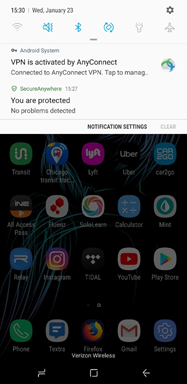
  1. In the notification area of your phone, you will see a “key” and a message that you are currently connected to the AnyConnect VPN. Either click on that message or open the AnyConnect app.
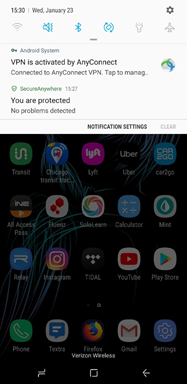
    Disconnect from the IIT VPN, click on that message or open the AnyConnect app
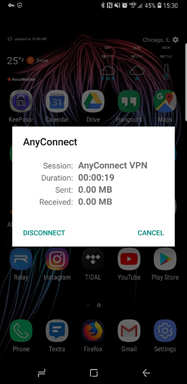
  2. At the prompt, click Disconnect.
    Disconnect from the IIT VPN, At the prompt, click Disconnect

VPN - Setup and Connect Using the Cisco AnyConnect for Android

  1. Launch the Google Play Store and search for AnyConnect.
    Setup and Connect Using the Cisco AnyConnect for Android, Launch the Google Play Store and search for AnyConnect and install
    Click INSTALL.
  2. When the app is first launched, it will ask you to accept the End User License Agreement. Click OK.
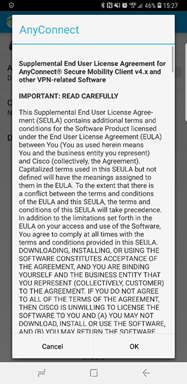
    Setup and Connect Using the Cisco AnyConnect for Android, Launch App, and accept the End User License Agreement
  3. On the home page of the AnyConnect app, you will see that the VPN is disconnected and there is no connection specified. Click on Connections.
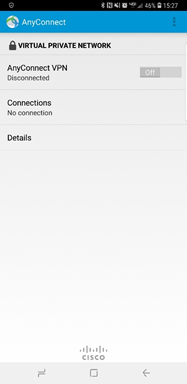
    Setup and Connect Using the Cisco AnyConnect for Android, On the home page of the AnyConnect app, 
 and Click on Connections
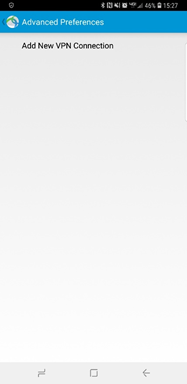
  4. Click Add New VPN Connection.
    Setup and Connect Using the Cisco AnyConnect for Android, Click Add New VPN Connection
  5. For the Description, enter IIT. For the Server Address, enter vpn.iit.edu.
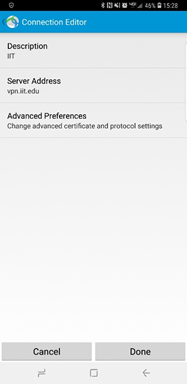
    Setup and Connect Using the Cisco AnyConnect for Android, For the Description, enter IIT. For the Server Address, enter vpn.iit.edu, and click done
    Click Done.
  6. You will now see “IIT” listed under Connections.
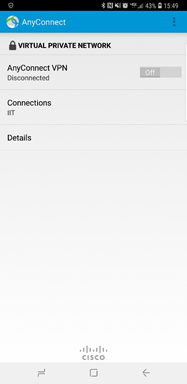
    Setup and Connect Using the Cisco AnyConnect for Android, You will now see “IIT” listed under Connections, and Click where it says OFF to activate the VPN.
    Click where it says OFF to activate the VPN.
  7. You will be prompted to enter your information.
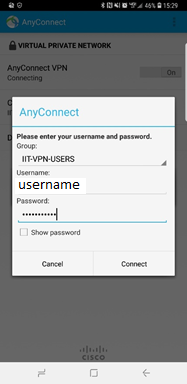
    Setup and Connect Using the Cisco AnyConnect for Android, You will be prompted to enter your information, Group: IIT-VPN-USERS, Username: your Illinois Tech Portal user ID without @, and Password: your Illinois Tech Portal ID password
     
    • Group: IIT-VPN-USERS
    • Username: your Illinois Tech Portal user ID (without @illinoistech.edu, @hawk.illinoistech.edu, etc.)
    • Password: your Illinois Tech Portal ID password
  8. You will be presented with a request to enable the connection. Click OK.
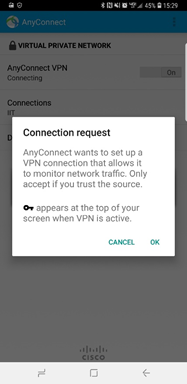
    Setup and Connect Using the Cisco AnyConnect for Android, You will be presented with a request to enable the connection. Click OK
  9. You will now see that you are connected to the VPN.
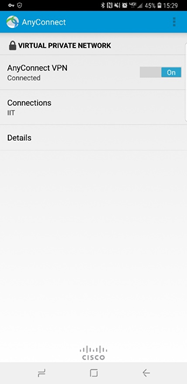
    Setup and Connect Using the Cisco AnyConnect for Android, You will now see that you are connected to the VPN
  10. You may click on “Details” in order to see your connection information.
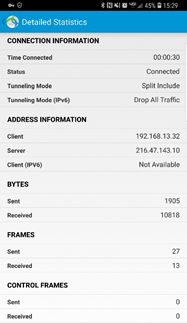
    Setup and Connect Using the Cisco AnyConnect for Android, You may click on “Details” in order to see your connection information