

Accessible Online Course Checklist
Digital Documents
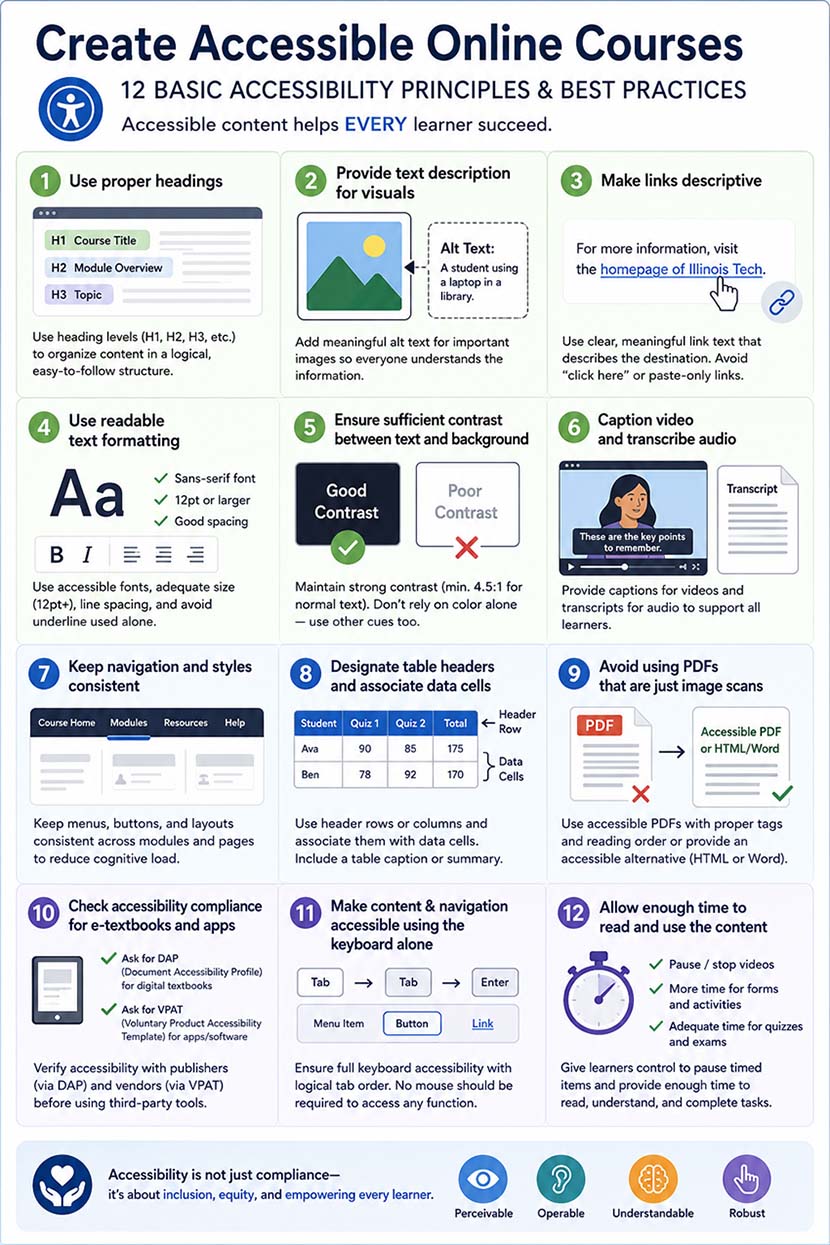
Word/PowerPoint files must use built-in heading styles, list structures, descriptive hyperlink text, and sufficient color contrast.
Readability
- In order to be accessible by assistive technology, digital text must be recognized as text, rather than an image. Images scanned from a paper book or with embedded text are common examples of unreadable documents.
Headings
- Documents should include a heading structure that allows for easy navigation for assistive technology users.
- Use proper heading levels (e.g., H1, H2, H3) to create a logical structure.
- There should typically be one and only one H1 (the title of the document). Subsequent heading levels should “nest” into H1, with each higher heading being a “smaller” sub-heading and do not skip heading levels.
- Use headings to support semantic meaning, not for visual styling.
Color and Contrast
- Do not rely on color alone to convey meaning. Use it with bold and/or italic.
- Color contrast is a measure of the difference in perceived brightness between two colors. WCAG requires different levels of contrast for different font sizes, but higher contrast is always more perceivable.
Alternative Text for Images
- For any informative images, provide alternative text to convey all relevant context and content. Alternative text is recommended to be concise and should be created depending on context.
- For decorative images, mark them as decorative.
Lists
- Use built-in list tools to create bulleted or numbered lists. Properly formatted numbered and bulleted lists help organize related content and enable assistive technologies to recognize lists, convey the number of items, and support easy navigation through the list structure.
- Avoid creating lists manually with symbols.
Descriptive Links
- Avoid using the full URL as the text of the link if possible. Links should provide the relevant info on the destination or purpose of the link.
- Avoid using “click here” or “read more.”
Tables
- Use a table for data presentation if possible. Table as a tool for layout or formatting is not recommended.
- Create the header rows.
- A table summary is helpful for a complex table.
PDFs must be tagged and structured for accessibility.
Canvas
- Interactive content (quizzes, discussions, assignments) must be navigable by keyboard.
- All informative images should have alt text.
- Media must have captions/transcripts. Audio description should be provided when important visual information is not conveyed in the audio.
- Headings should be structured logically.
- Timed activities must provide adjustable time limits or alternatives.
For more detailed information on these topics, check out the Digital Accessibility 101 Training in Canvas.