

This section explains how to create outcomes in Canvas. One of the most important things to do is consider the naming conventions in advance. Short, succinct titles are necessary to help instructors locate the appropriate outcomes to align with their courses.
Work closely with the assessment committee or the Center of Learning Innovation to determine the best grouping and naming conventions.
Outcomes created in the subaccount will only be available to courses in the subaccount. For example, outcomes created in the “Business Administration” subaccount will only be available to Stuart School of Business courses. Outcomes created in “Applied Math” will only be available to courses in applied math. Outcomes created at the “Illinois Tech” level will be available to all courses in the system.
First, Create the Groups
- As an admin, log into Canvas
- Click “Admin” on the global menu
- Click the appropriate subaccount
- Click “OUTCOMES” on the admin menu bar
- An “outcome group” will automatically be created for the subaccount by default
See: “Business Administration” in the image below. - Click “Create New Group” under the subaccount name
- Add the name of the “Group” of outcomes
See: “Stuart Common Goals” in the image below.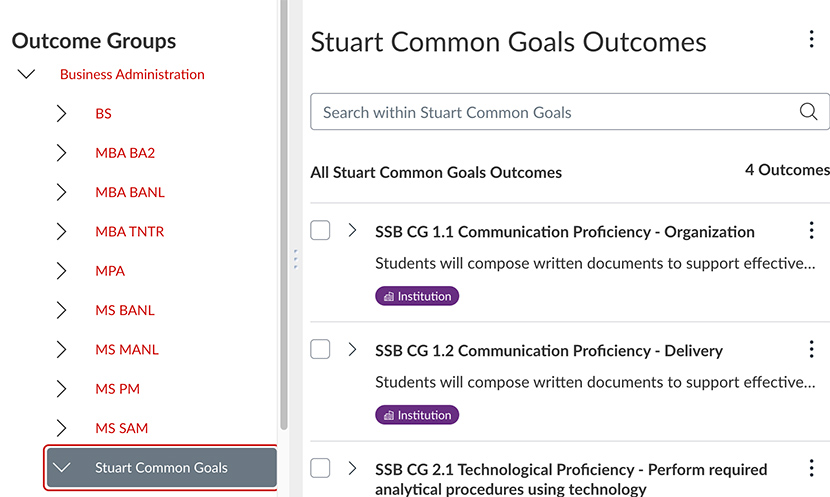
- Under the group, create yet another group to list an outcome within this group. In this case, we’ll make two sub-groups under “Common Goals,” called:
- SSB CG1 Communication Proficiency
- SSSB CG2 Technological Proficiency
These “groups” are ACTUALLY the outcomes.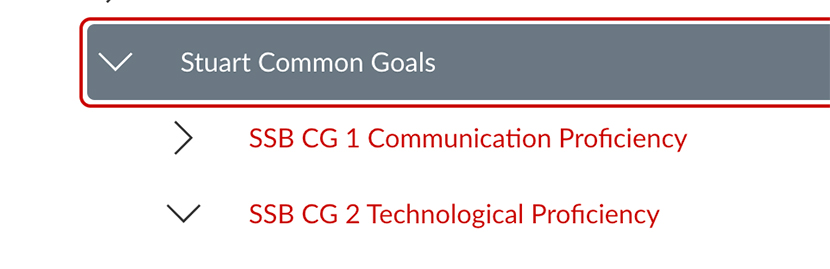
- Click on the outcome (For example: “SSB CG1 Communication Proficiency”) and then click “+ CREATE” at the top of the page
CREATE the Outcomes
- After you click “CREATE,” enter a name and a friendly name. The name might be something such as “SSB BS 1.1 Analytical Methods—Justification for Method” and the friendly name might be “Analytical Methods—Justification for Method.”
- Enter a description and a friendly description. Reminder: The friendly description is what appears to students. Avoid using educational or assessment jargon in the friendly description.
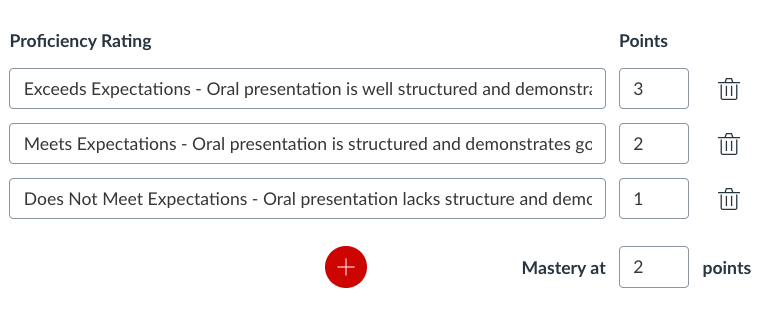
- Enter the proficiency ratings and corresponding points. The points are usually on a scale of 1–3 or 0–3.
- Enter a numerical value for mastery. Mastery does not mean perfection. It means the level that fully meets the rigor of achievement expectation. Generally, this is the middle value. In most cases, the mastery score will be aligned with the score for “Meets.”
- Select the calculation method. The assessment department or school should decide which calculation method should be used. “Average” is not recommended because it might weigh down a student’s score IF they take the assessment many times and do poorly in the beginning. “Most recent score” is the most commonly selected option at Illinois Tech.
Learn more about each calculation method:
Set mastery and calculation method (link to the Instructure Community)
How do I manage outcome mastery calculations in an account? (links to Instructure Admin guide) - Press “Save” and “Continue” to add more criteria as needed.