

- Go to your Canvas Course.
- Locate the Quiz in Canvas and click on the name to open it.
- At the bottom of the page, click “Find Rubric”
- Click Add Rubric.
- A menu will appear on the left side. Either search for the Rubric by name or select a pre-existing Program or Core Outcomes Rubric from the drop-down menu.
TIP: Because the text area is limited, click on the carrot to preview the Rubric.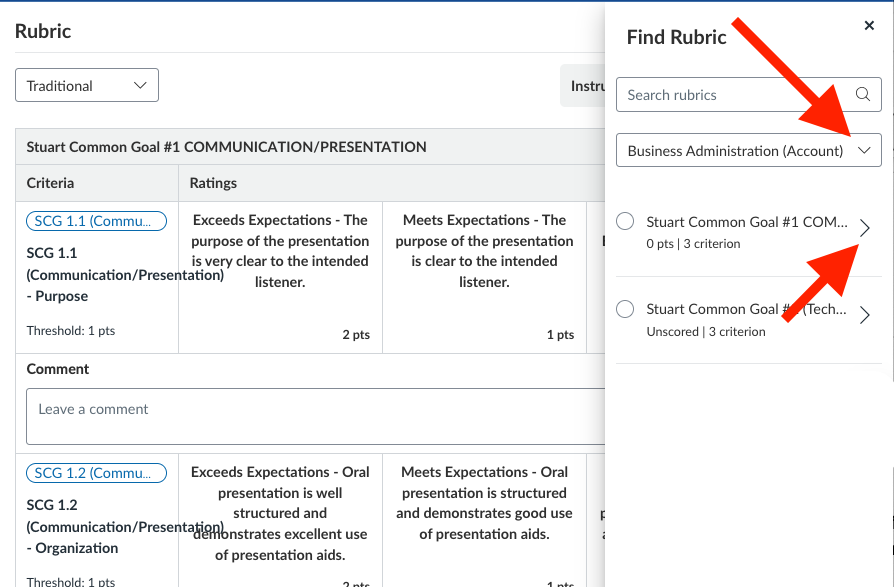
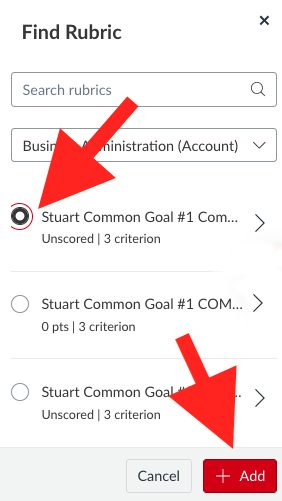
- Select the desired Rubric and click + Add
- If you wish, you can edit the rubric to remove any criteria that does not apply to the quiz.
- When you're ready, save and publish the Quiz.
Note: Unlike Canvas Assignments, students will NOT see the Rubric attached to the Quiz.