After students have completed or submitted an assessment that is aligned with an Outcome in Canvas, the instructor should assess whether or not the student has exceeded, met, or not met the criteria. This is very easy if the Outcome was added via a Rubric.
As an instructor, to view the student's submission and provide an assessment...
- Go to your course in Canvas
- Click Grades in the menu bar
- Locate the column for the assessment and view the Speedgrader to begin your review.
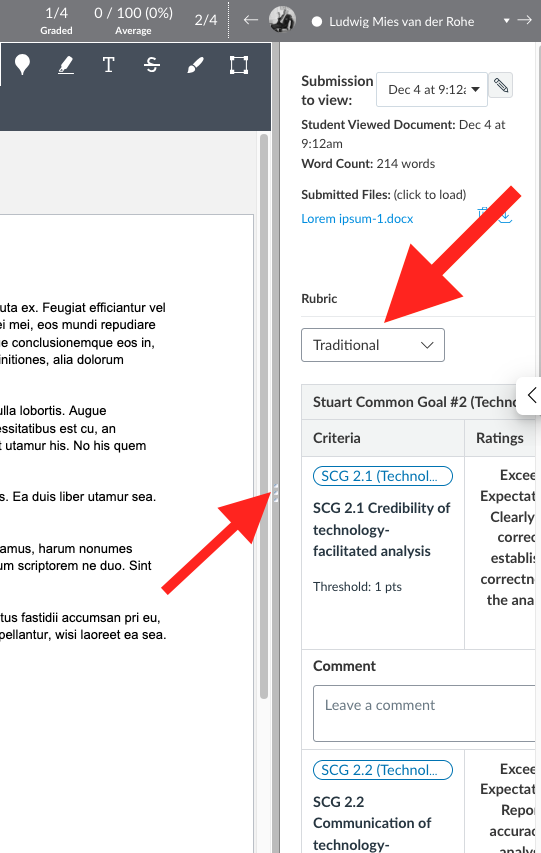
- In the Speedgrader, the rubric will be viewable on the right side of the screen. Notice that you can Drag and drop the width of the sidebar to make viewing the rubric easier. You can also change the layout of the rubric to find the one that works best for you. Click on the Dropdown menu to change from Traditional, Horizontal or Vertical to explore those options.
- Review the student's submission and simply click on the appropriate rating for each criteria.
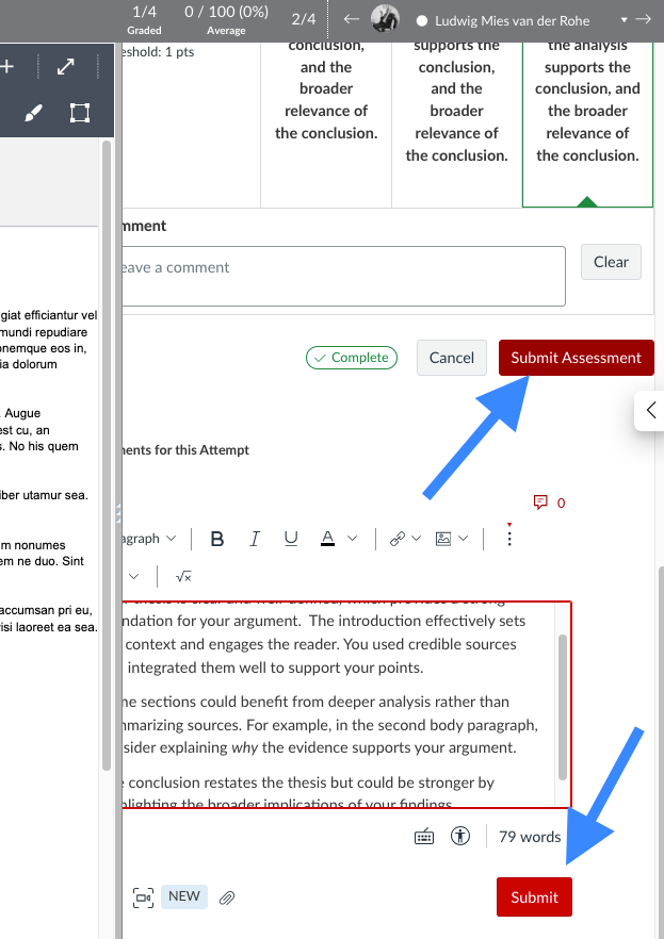
- Scroll to the bottom of the Rubric layout and click “Submit Assessment” and then, enter the grade and any comments specifically related to the assessment and the grade, and press “Submit”
🚨 IMPORTANT 🚨: There are two “Submits” - one for the Grade and one for the Outcome.