

- Go to your Canvas course.
- Locate the quiz and click on the name to open it.
- Click Build at the bottom of the page of a New Quiz
- Click Outcomes at the top of the Build tab
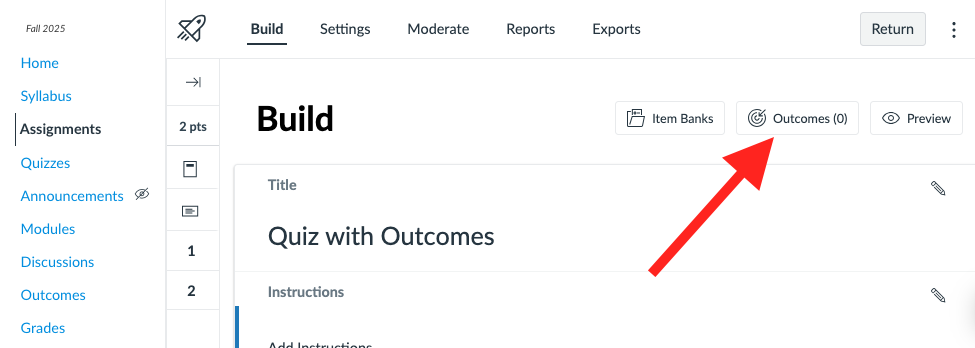
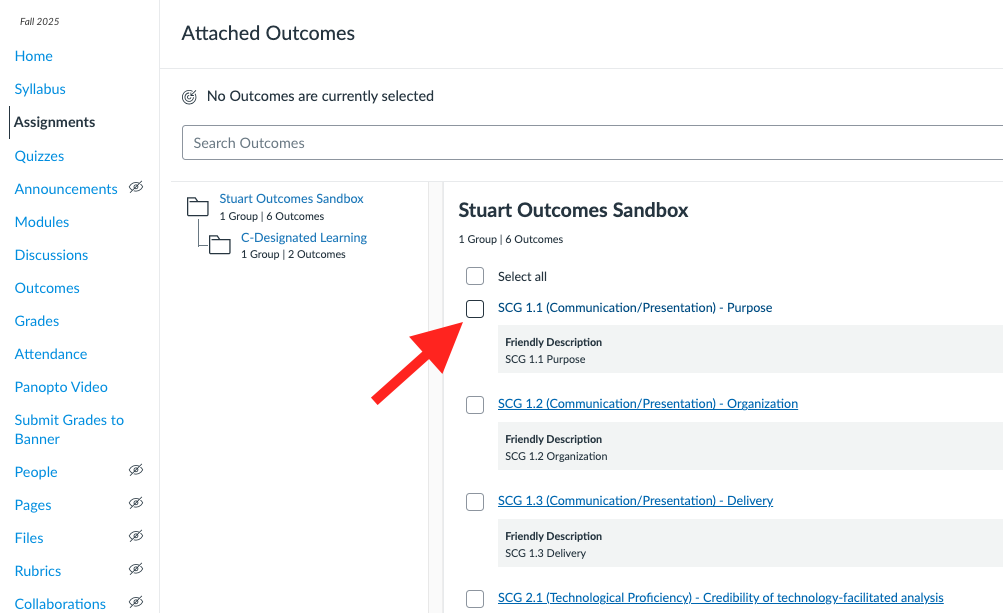
- Click Align Institution outcomes to this quiz
- On the page that appears, you'll see the Institutional outcomes that are available to you. Select the desired outcomes for the quiz (NOTE: These outcomes will apply to the students' performance on the entire quiz, not individual questions).
- Press Confirm Alignments
- Press the Return button and remember to publish the quiz to make it available to students.